> ## Documentation Index
> Fetch the complete documentation index at: https://mintlify.com/n4ze3m/page-assist/llms.txt
> Use this file to discover all available pages before exploring further.
# Extension Conflicts
> Resolve issues when Page Assist conflicts with other websites
Page Assist rewrites the Origin header to avoid CORS issues when communicating with the Ollama API. While this feature is essential for the extension to work properly, it can sometimes cause issues with other websites.
## Known Conflicts
The following websites are known to have issues when Page Assist's automatic CORS fix is enabled:
May not load or function correctly with CORS fix enabled.
Can experience authentication or loading issues.
If you discover other websites that conflict with Page Assist, please [report them on GitHub](https://github.com/n4ze3m/page-assist/issues/new) so they can be documented.
## Solution: Disable Automatic CORS Fix
If Page Assist is causing issues with other websites, you can disable the automatic CORS fix feature.
Click on the Page Assist icon in your browser toolbar.
Click on the **Settings** icon (gear icon).
Click on the **Ollama Settings** tab.
Find and expand the **Advanced Ollama URL Configuration** section.
Turn off the **Enable or Disable Automatic Ollama CORS Fix** option.
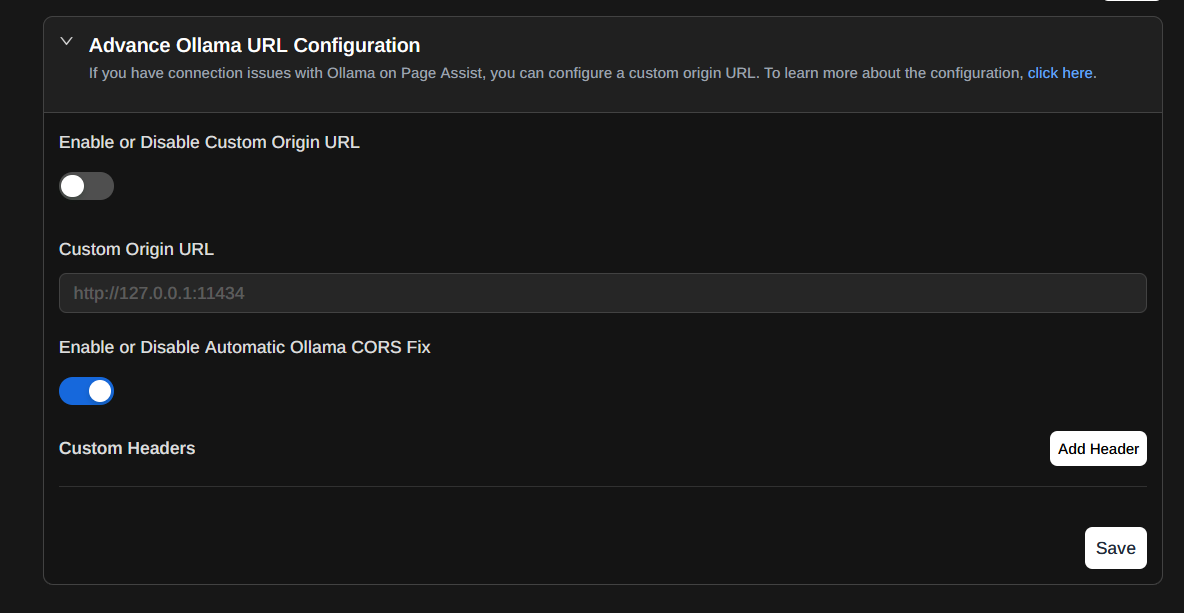
Click the **Save** button to apply your changes.
Disabling the automatic CORS fix will prevent Page Assist from automatically rewriting the Origin header. This may cause Ollama to start throwing 403 errors.
## Fix 403 Errors After Disabling CORS Fix
Once you disable the automatic CORS fix, you'll need to configure Ollama to accept connections from browser extensions. You can do this by setting the `OLLAMA_ORIGINS` environment variable.
1. Open the Start menu and search for "Environment Variables"
2. Click "Edit the system environment variables"
1. Click the "Environment Variables" button
2. Under "System Variables", click "New"
* Set Variable name: `OLLAMA_ORIGINS`
* Set Variable value: `*`
* Click OK to save
Restart the Ollama service for changes to take effect.
Launch the Terminal application.
Run the following command:
```bash theme={null}
launchctl setenv OLLAMA_ORIGINS "*"
```
Restart the Ollama service for changes to take effect.
Run the following command in your terminal:
```bash theme={null}
export OLLAMA_ORIGINS="*"
```
To make this permanent, add the line to your shell configuration file (`~/.bashrc`, `~/.zshrc`, etc.).
Restart the Ollama service for changes to take effect.
### For systemd Users
If you're managing Ollama with systemd, you can add the environment variable directly to your service file:
```bash theme={null}
[Unit]
Description=Ollama Service
After=network-online.target
[Service]
Environment="OLLAMA_HOST=192.168.4.67:11434"
Environment="OLLAMA_MAX_LOADED_MODELS=4"
Environment="OLLAMA_ORIGINS=*"
ExecStart=/usr/local/bin/ollama serve
User=ollama
Group=ollama
Restart=always
RestartSec=3
Environment="PATH=/usr/local/sbin:/sbin:/usr/sbin:/root/bin:/usr/local/bin:/bin:/usr/bin:"
[Install]
WantedBy=default.target
```
After editing the service file, reload systemd and restart Ollama:
```bash theme={null}
sudo systemctl daemon-reload
sudo systemctl restart ollama
```
If you're running Ollama in Docker, add the environment variable to your configuration:
**Docker run command:**
```bash theme={null}
docker run -d \
-e OLLAMA_ORIGINS="*" \
-p 11434:11434 \
ollama/ollama
```
**Docker Compose:**
```yaml theme={null}
version: '3'
services:
ollama:
image: ollama/ollama
ports:
- "11434:11434"
environment:
- OLLAMA_ORIGINS=*
```
After updating your configuration, restart the container:
```bash theme={null}
docker restart
```
Setting `OLLAMA_ORIGINS=*` allows Ollama to accept requests from any origin. This resolves CORS issues but is less restrictive. For production environments, consider specifying exact origins instead of using `*`.
## Alternative: Selective Disabling
If you only experience issues on specific websites, you can:
1. **Temporarily disable Page Assist** on those websites:
* Right-click the Page Assist icon
* Look for "Disable on this site" or similar option
* The extension won't run on that specific website
2. **Use different browser profiles**:
* Create a separate browser profile for websites that conflict
* Keep Page Assist disabled in that profile
* Use your main profile with Page Assist for normal browsing
## Troubleshooting Extension Conflicts
If disabling the CORS fix doesn't resolve the issue:
1. **Clear browser cache**: The website may have cached the modified headers
2. **Hard refresh**: Press `Ctrl+Shift+R` (or `Cmd+Shift+R` on Mac)
3. **Disable Page Assist entirely**: Temporarily disable the extension to confirm it's the cause
4. **Check other extensions**: Another extension might be causing the conflict
If you still see 403 errors after configuring the environment variable:
1. **Verify the variable is set**: Check that `OLLAMA_ORIGINS` is actually set in your environment
2. **Confirm Ollama restart**: Make sure you restarted Ollama after setting the variable
3. **Check Ollama logs**: Look for CORS-related messages in the logs
4. **Try alternative syntax**: Some systems may require `OLLAMA_ORIGINS="*"` with quotes
If you need Page Assist to work while also using conflicting websites:
**Option 1: Toggle as needed**
* Disable CORS fix when using conflicting websites
* Re-enable when you need to use Page Assist
* Keep `OLLAMA_ORIGINS=*` set permanently
**Option 2: Use browser profiles**
* Create one profile with Page Assist enabled (with CORS fix)
* Create another profile without Page Assist for conflicting websites
* Switch between profiles as needed
**Option 3: Configure Ollama globally**
* Set `OLLAMA_ORIGINS=*` on your system
* Disable Page Assist's CORS fix permanently
* Both Page Assist and other websites will work
Setting `OLLAMA_ORIGINS=*` allows any origin to connect to your Ollama instance:
**For local-only use:**
* This is generally safe if Ollama only binds to localhost (127.0.0.1)
* Other machines on your network cannot access it
**For network-accessible Ollama:**
* Consider specifying exact origins instead of `*`
* Example: `OLLAMA_ORIGINS="chrome-extension://your-extension-id,https://your-app.com"`
* Use a reverse proxy with authentication for production deployments
* Implement firewall rules to restrict access
## Reporting New Conflicts
If you discover a website that conflicts with Page Assist, please help the community by reporting it:
1. [Open an issue on GitHub](https://github.com/n4ze3m/page-assist/issues/new)
2. Include:
* The website URL that's affected
* What functionality breaks
* Browser and version
* Page Assist version
* Whether disabling the CORS fix resolves it
This helps improve Page Assist and build a comprehensive list of known conflicts.
## Related Resources
Troubleshoot Ollama connectivity problems
Solutions to other frequent issues