> ## Documentation Index
> Fetch the complete documentation index at: https://mintlify.com/n4ze3m/page-assist/llms.txt
> Use this file to discover all available pages before exploring further.
# Connection Issues
> Troubleshoot Ollama and AI provider connection problems
Connection issues with Ollama or other AI providers can occur for several reasons. This guide covers common connection problems and their solutions.
## Common Error Messages
You may encounter the following error messages when experiencing connection issues:
### Direct Connection Error
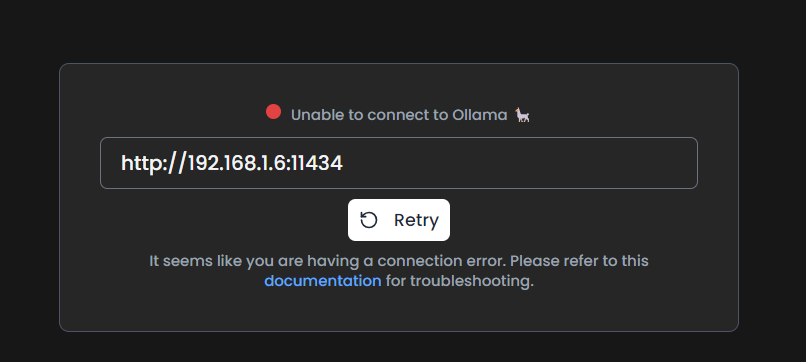
This error indicates that Page Assist cannot reach your Ollama server.
### 403 Error When Sending a Message
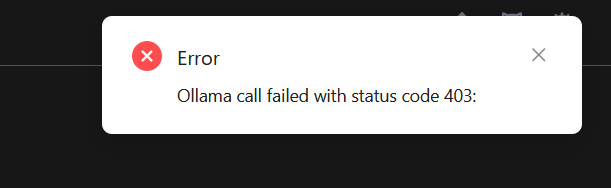
This error is caused by CORS (Cross-Origin Resource Sharing) restrictions. Since Page Assist is a browser extension, it needs to communicate with the server through the browser, but browsers restrict communication between different origins.
## Solutions
Page Assist automatically rewrites request headers to work with Ollama, but this only works for `http://127.0.0.1:*` and `http://localhost:*` URLs.
Click on the Page Assist icon in your browser toolbar and click on the **Settings** icon.
Click on the **Ollama Settings** tab.
Find and expand the **Advanced Ollama URL Configuration** option.
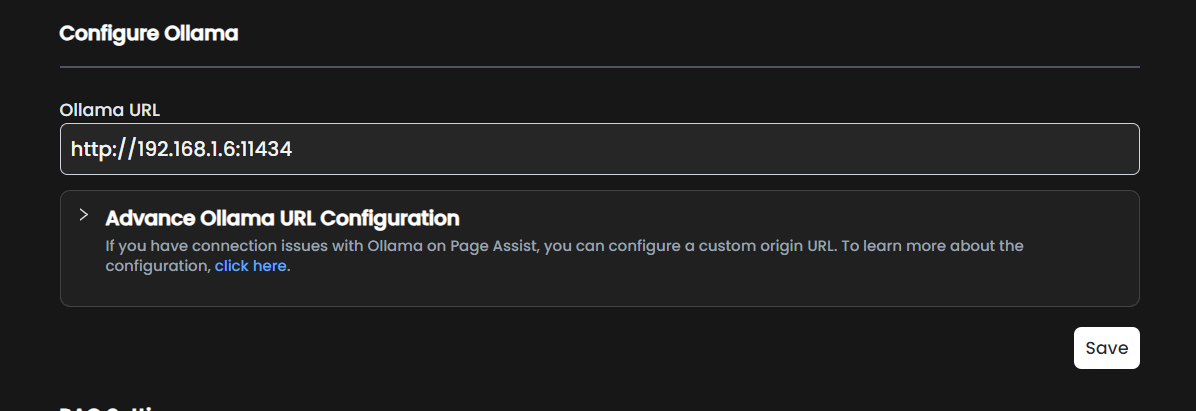
Toggle on the **Enable or Disable Custom Origin URL** option.
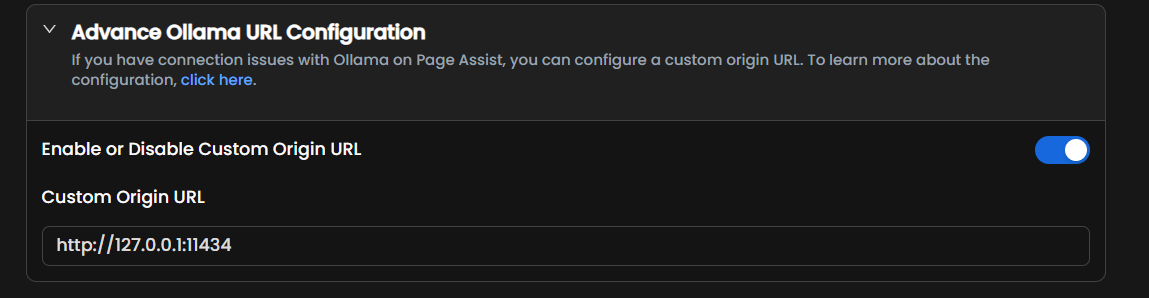
If Ollama is running on a different port, change the URL in the **Custom Origin URL** field. Otherwise, leave it as the default value.
Click the **Save** button to apply your changes.
This should resolve the connection issue, and you'll be able to use Ollama without any problems on Page Assist.
You can set `OLLAMA_ORIGINS=*` to allow connections from any origin. Follow the instructions for your operating system:
1. Open the Start menu and search for "Environment Variables"
2. Click "Edit the system environment variables"
1. Click the "Environment Variables" button
2. Under "System Variables", click "New"
* Set Variable name: `OLLAMA_ORIGINS`
* Set Variable value: `*`
* Click OK to save
Restart the Ollama service for changes to take effect.
Launch the Terminal application.
Run the following command:
```bash theme={null}
launchctl setenv OLLAMA_ORIGINS "*"
```
Restart the Ollama service for changes to take effect.
Launch your terminal application.
Run the following command:
```bash theme={null}
export OLLAMA_ORIGINS="*"
```
This sets the variable for the current session only. To make it permanent, add this line to your `~/.bashrc` or `~/.zshrc` file.
Restart the Ollama service for changes to take effect.
**For systemd users:**
If you're using systemd to manage Ollama, you can add the environment variable to your service file:
```bash theme={null}
[Unit]
Description=Ollama Service
After=network-online.target
[Service]
Environment="OLLAMA_HOST=192.168.4.67:11434"
Environment="OLLAMA_ORIGINS=*"
ExecStart=/usr/local/bin/ollama serve
User=ollama
Group=ollama
Restart=always
RestartSec=3
[Install]
WantedBy=default.target
```
After editing the service file, reload systemd and restart Ollama:
```bash theme={null}
sudo systemctl daemon-reload
sudo systemctl restart ollama
```
If you're running Ollama in Docker, add the environment variable to your docker run command or docker-compose.yml:
**Docker run:**
```bash theme={null}
docker run -d \
-e OLLAMA_ORIGINS="*" \
-p 11434:11434 \
ollama/ollama
```
**Docker Compose:**
```yaml theme={null}
version: '3'
services:
ollama:
image: ollama/ollama
ports:
- "11434:11434"
environment:
- OLLAMA_ORIGINS=*
```
## Additional Troubleshooting
Make sure Ollama is actually running on your system:
1. Check if Ollama is running by visiting `http://localhost:11434` in your browser
2. You should see "Ollama is running" if it's active
3. If not, start Ollama using the command: `ollama serve`
Verify that Page Assist is using the correct port:
1. Check which port Ollama is running on (default is 11434)
2. In Page Assist settings, go to **Ollama Settings**
3. Verify the Ollama URL matches your configuration (e.g., `http://localhost:11434`)
Your firewall may be blocking the connection:
1. Check your firewall settings
2. Allow connections to port 11434 (or your custom port)
3. For Windows, add an exception in Windows Defender Firewall
4. For Linux, use `ufw` or `iptables` to allow the port
If you're connecting to a remote Ollama instance:
1. Make sure the server is accessible from your network
2. Use the full URL including the IP address: `http://192.168.1.100:11434`
3. Ensure OLLAMA\_HOST is set on the server to allow external connections:
```bash theme={null}
OLLAMA_HOST=0.0.0.0:11434
```
4. Configure OLLAMA\_ORIGINS on the server as described in Solution 2
## Still Having Issues?
If you've tried all the solutions above and still face connection issues, please [open an issue on GitHub](https://github.com/n4ze3m/page-assist/issues/new) with:
* Your operating system and version
* Your browser and version
* The exact error message you're seeing
* Your Ollama version (`ollama --version`)
* Your Page Assist settings configuration
We'll be happy to help you resolve the issue.